Fix Paper Jams & Feed Problems at Home: 10 Proven Methods
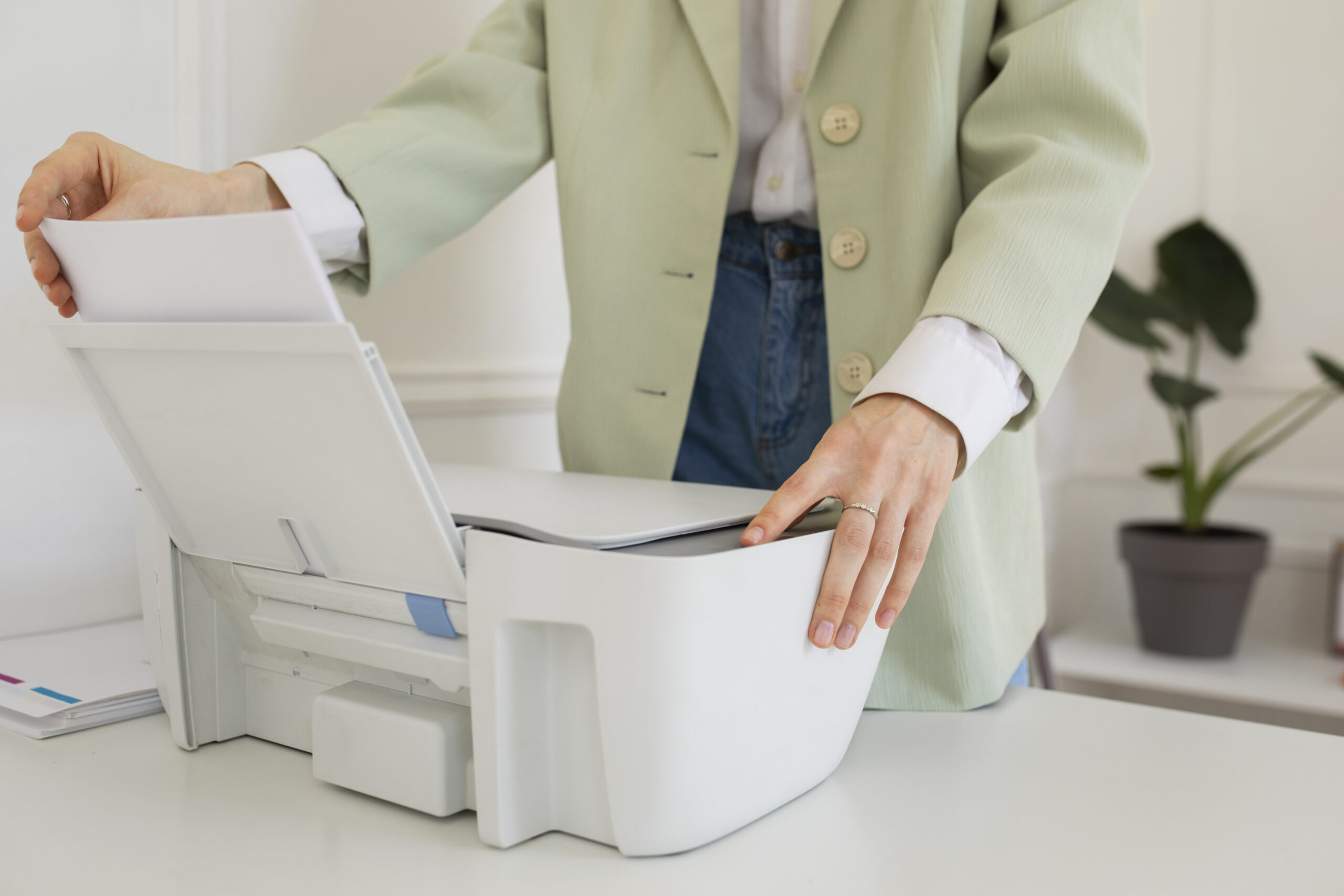
Nothing kills momentum like a paper jam. The good news: most jams have simple causes—damp or curled sheets, loose tray guides, dusty rollers, or a media preset that doesn’t match what’s in the tray. This brand-neutral guide gives you 10 proven methods to clear jams safely and stop them from returning. It works with both inkjet and laser models on Windows and macOS. Follow the sequence below; you’ll move from fast fixes to durable prevention so printing becomes boring (in the best way).
At a glance: common causes vs the right fix
| Symptom | Likely cause | Best fix (method #) |
|---|---|---|
| Jam on the first sheet | Dusty pickup roller or skewed tray guides | Clean/restore rollers (#3), set guides snug (#2) |
| Jams mid-page with crumple | Wrong media preset for paper weight | Match driver media to stock (#6) |
| Only heavy/satin paper jams | Path speed too fast or heat too low | Use Heavy/Thick or Coated preset; straight path (#6, #7) |
| Duplex jams or flips weird | Return path curl or binding mismatch | Use 100–120 gsm, correct binding, test duplex (#5, #8) |
| Random jams after long idle | Humidity curled the ream edges | Fresh sealed stack; rotate orientation (#1) |
| Sensor error after clearing jam | Scrap of paper or stuck flag | Inspect path & gently flick flags (#4) |
Method 1 — Start clean: fresh paper and correct loading
Most jams trace back to paper condition. Curled or damp edges wedge under the first roller and fold on themselves. Fix the feed at the source:
- Open a sealed ream and take 10–15 sheets. Fan lightly, square the edges, and tap on a flat surface.
- Set tray guides snug (not tight). Gaps cause skew; pressure causes drag. Re-check after you close the tray.
- Avoid mixed sizes/weights in one stack. If you must mix, place the heaviest type on top and use short stacks.
- Rotate the stack 180° to counter curl. If one direction works better, keep that orientation for the ream.
Method 2 — Tray setup that prevents jams
Tray geometry matters. A 1–2 mm mis-set guide or an overfilled stack can trigger repeat jams.
- Remove the tray. Check for torn scraps or bent separators. Vacuum dust with a hand blower (no canned liquid propellants).
- Set paper size in the device menu and the driver dialog to match the tray label (A4 most homes).
- Do not cross the max line. If pages “hesitate” on pickup, reduce stack height.
- For envelopes/labels, prefer the manual bypass slot if available; it flattens the path.
Method 3 — Clean pickup and feed rollers (2–5 minutes)
Glazed or dusty rollers slip, then snap, folding the sheet and flagging a jam. A gentle clean restores grip.
What you need
| Item | Why | Notes |
|---|---|---|
| Lint-free cloth or coffee filter | Leaves no fibres | Old T-shirts shed; avoid |
| Clean water or 70% IPA | Loosens paper dust/glaze | Use sparingly; never soak |
| Gloves (optional) | Grip and cleanliness | Keep oils off rollers |
Steps
- Power off and unplug. Remove the tray and open front/rear doors.
- Locate pickup rollers (first rubber contacts) and downstream feed/idlers.
- Dampen cloth slightly. Rotate each roller with fingers; wipe until the surface feels tacky, not shiny.
- Let dry 5–10 minutes. Reassemble and load a small fresh stack to test.
If a roller looks hard and glossy after cleaning, it’s worn. You can still gain short-term improvement, but consider a replacement via official parts channels.
Method 4 — Inspect the path: remove scraps and reset flags
Even a 5 mm scrap can hold a sensor “closed”. Work through the path once, slowly.
- Open the front door, rear door/straight-through flap, and any duplex module.
- Follow the printed arrows. Pull jammed sheets in the feed direction with two hands to avoid tearing.
- Shine a torch; look for sensor flags (little plastic levers). They must move freely and spring back.
- Wipe toner or paper dust from the first bends. Avoid sharp tools—use plastic tweezers if needed.
Method 5 — Duplex without drama (alignment & curl control)
Jams on the second side often come from curl and binding-edge mistakes.
- Switch to 100–120 gsm for duplex jobs; thinner paper curls in the return path.
- In the driver, choose Long-edge binding for portrait A4 (flip like a book). Test with a 2-page PDF.
- If backs are slightly offset, look for registration/border shift and adjust by 0.5–1 mm.
- Let freshly printed stacks cool flat; warm pages curl and can jam on the next job.
Method 6 — Match media preset to what’s in the tray
Drivers change feed speed and (for lasers) fuser heat based on your selection. The wrong preset = jams.
| Paper you loaded | Choose this preset | Why it works |
|---|---|---|
| 80–90 gsm plain A4 | Plain / Normal quality | Normal speed & heat suit thin stock |
| 100–120 gsm premium | Thick/Heavy or Light Card | Slower path reduces crumple, more heat bonds toner |
| Glossy/satin photo | Coated/Photo (inkjet) or Labels/Coated (laser-safe) | Different ink/toner laydown and speed |
| Labels/envelopes | Labels / Envelope | Flatter path, slower feed |
Windows: Printer → Preferences → Paper/Quality or Media Type. macOS: File → Print → dropdown panels (Layout/Quality/Media). Save a working combo as a preset: “A4 – Plain – Normal – Duplex Long-edge”.
Method 7 — Use the straight path for special media
Thick covers, envelopes and label sheets hate tight bends. If your device has a rear door or manual feed slot, use it:
- Open the rear door for a near straight-through exit.
- Feed one sheet at a time from the manual slot; keep hands clear until fully ejected.
- For labels, ensure they’re rated for your device type (laser vs inkjet). Never run the same sheet twice.
Method 8 — Fix humidity & curl (silent jam killer)
Humidity makes edges lift. Lifted edges hit guides and sensors, then jam. Stabilise the stack and room:
- Store reams flat and sealed. Keep opened packs in zipper folders.
- If a ream feels soft or wavy, take 15 sheets and pre-flatten them under a book for 10 minutes.
- Run a dehumidifier or air-conditioner during monsoon or damp weeks.
- Avoid sunlight on the tray; warm plastic warps and misguides the stack.
Method 9 — Reset and test with a diagnostic stack
After any fix, prove stability with a short, varied run:
- Power cycle: off for 60 seconds, then on.
- Print the device’s built-in report (often under Reports/Information).
- Print a 10-page PDF mix: text page, table page, duplex test, small image page.
- If all clear, you’re good. If a pattern repeats (e.g., jam on page 2 every time), note the spot and revisit the matching method above.
Method 10 — Long-term prevention routine (monthly, 5 minutes)
- Monthly: wipe first visible roller, clear dust from tray cavity.
- Paper discipline: small stacks, guides snug, sealed storage.
- Preset discipline: save presets for Plain, Heavy, and Photo and actually use them.
- Path sanity: don’t push or remove the tray while printing; wait for idle.
Choosing the right paper (quick guide)
| Type | Weight | Use | Jam risk | Notes |
|---|---|---|---|---|
| Copy/plain | 80–90 gsm | Everyday text | Low | Best for long runs; duplex OK |
| Premium text | 100–120 gsm | Reports, CVs | Low–Med | Use Heavy preset; duplex cleaner |
| Photo/Coated | 180–260 gsm | Covers, photos | Med | Use Coated preset; straight path preferred |
| Labels | 1-sheet | Addressing | Med | Labels/Envelope preset; never re-feed same sheet |
Windows & macOS: exact clicks (A4, duplex, media match)
Windows 10/11
- Open the PDF → Print → Preferences.
- Paper/Quality: Media = Plain (or Heavy/Photo), Size = A4, Quality = Normal for text.
- Layout/Finishing: Print on both sides → Long-edge (portrait).
- OK → Print a 2-page test → then your job.
macOS
- File → Print (from PDF).
- Paper Size = A4 → Presets = Default (or your saved preset).
- Panel: Layout → Two-Sided on → Binding Long-edge.
- Panel: Quality/Media → choose Plain/Heavy/Coated to match stock. Print test.
Troubleshooting by where it jams (map to method)
| Where the sheet stops | Check | Go to |
|---|---|---|
| Right at pickup | Tray height, guides, pickup roller dust | #2, #3 |
| First bend after tray | Paper curl, humidity, worn feed roller | #1, #3, #8 |
| Near fuser (hot area) | Wrong media preset, heavy stock too fast | #6, #7 |
| On duplex return | Binding option, stock weight, curl | #5, #8 |
| Random, intermittent | Scraps in path, sticky sensor flag | #4 |
Clear-jam walkthrough (step-by-step, safe technique)
- Power off, unplug. Remove the tray and any pages in the output.
- Open rear door/straight-through slot; open duplexer if separate.
- Hold the jammed sheet with two hands and pull in feed direction. If it tears, remove small scraps with plastic tweezers.
- Check sensor flags; flick gently to confirm spring return.
- Clean first roller; re-load a short fresh stack; close doors firmly; power on.
- Print built-in test; then a 5–10 page PDF to confirm stability.
When parts are worn (how to tell without guessing)
- Glossy, hard rollers even after cleaning → temporary grip only; plan a roller kit.
- Deep click/chirp on pickup → roller slips then catches; cleaning helps, replacement best.
- Repeated skew to one side → tray guide bent or separator pad worn.
This guide stays brand-neutral; for parts, use official channels listed in your device manual.
FAQs
Is it safe to pull the paper from the front?
Pull in the feed direction whenever possible. Opening the rear/straight-through door reduces stress on rollers and sensors. If a page tears, remove scraps before closing; a leftover sliver can hold a sensor flag closed and trigger another jam.
Why do jams happen only on duplex?
The second pass adds curl and drag. Heavier 100–120 gsm stock plus Long-edge binding usually solves it. If mis-registration appears, use the driver’s border/registration shift by 0.5–1 mm and let the stack cool flat before handling.
Which cleaning fluid is safe for rollers?
Clean water works for light dust. 70% isopropyl alcohol helps with glaze. Apply sparingly to a lint-free cloth; never pour onto parts. Let rollers dry fully (5–10 minutes) before testing.
Do I need to change paper for photo covers?
Yes. Use coated/photo stock and the matching driver preset. Prefer the manual/straight path to avoid tight bends. For lasers, ensure the sheet is rated as “laser-safe coated”.
The jam message won’t clear after I removed the paper.
There’s likely a small scrap left or a sensor flag stuck. Re-open all doors, inspect with a torch, and gently flick flags to ensure they move freely. Close each door firmly and power-cycle.
Independent, brand-neutral education only. No remote access, no repairs, no warranty services.