Print from Chromebook or iPad: What Actually Works
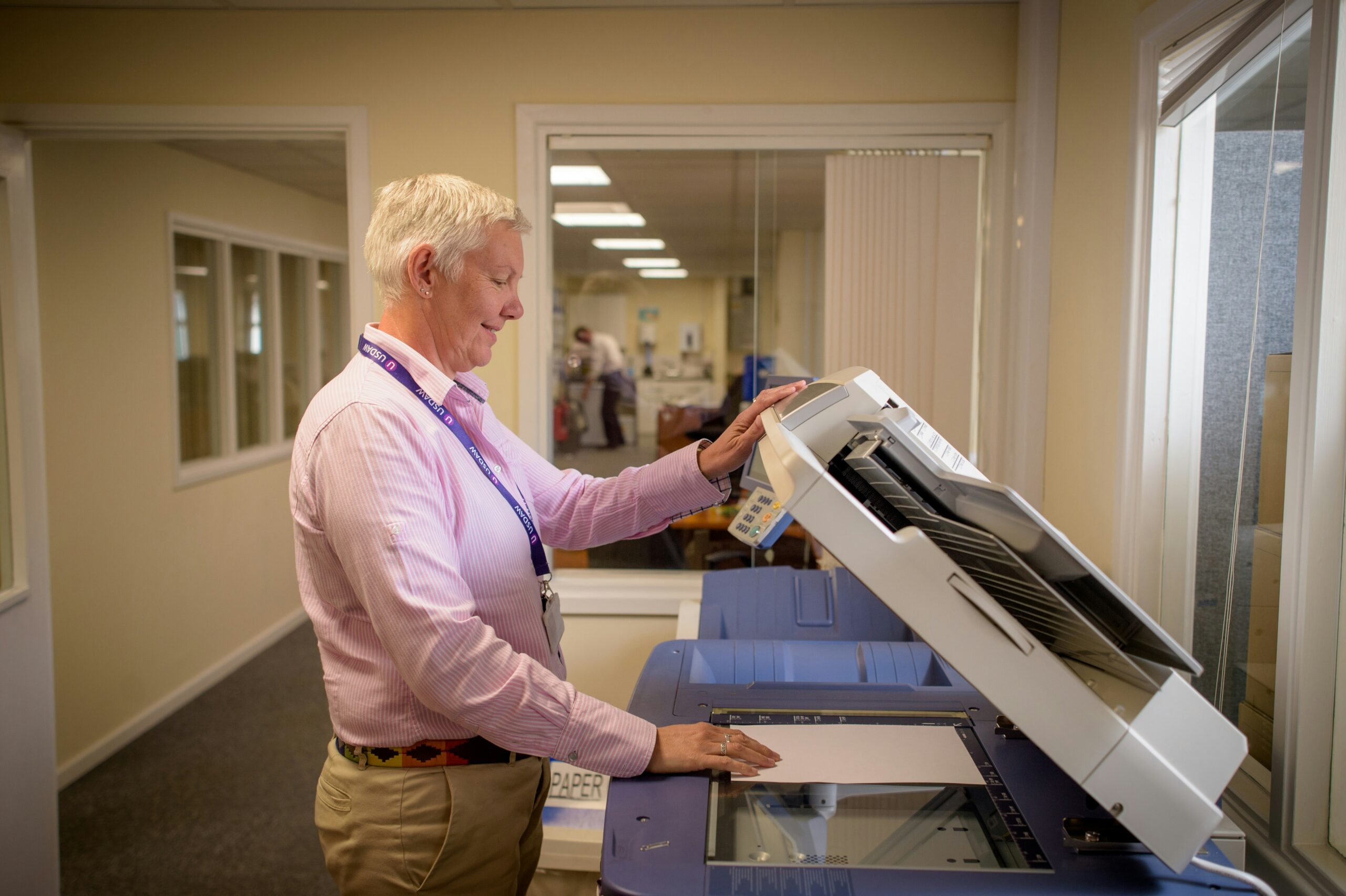
Homework due, ticket at the gate, or a form that must be on paper? This brand-neutral guide shows how to print from Chromebook and print from iPad predictably. We lean on the modern standards that quietly power reliable printing today—AirPrint, IPP Everywhere and Mopria—so you don’t juggle drivers or apps. You’ll get platform-specific steps, household presets, classroom-safe tips and an A→Z troubleshooting matrix that prevents repeat headaches.
Quick Start — 2-minute wins
- Put the printer on Wi-Fi/Ethernet; print a config page to confirm its IP address.
- Chromebook: time → Settings → Advanced → Printing → Printers → Add → choose the device (IPP). This is the most direct way to print from Chromebook.
- iPad: open file/photo → Share → Print → pick the printer (AirPrint) on the same Wi-Fi. That’s the quickest way to print from iPad.
- USB-only printer? Publish one IPP/AirPrint queue from a tiny CUPS server and let every device use that single queue.
- Reserve the printer/server IP in the router so discovery is stable all year.
How driverless printing works (in plain English)
Modern Chromebook printing and iPad printing are built on IPP—a network print protocol that advertises a printer’s capabilities (page sizes, duplex, color, trays) over Bonjour/mDNS. IPP Everywhere is a driverless standard used by ChromeOS; AirPrint is Apple’s profile (also IPP under the hood). Android’s Mopria discovers and uses the same IPP queues via the Default Print Service. The result: one queue, all devices.
Method 1 — Chromebook + IPP Everywhere
This is the clean path for print from Chromebook in homes and schools.
- Select time (bottom-right) → Settings → Advanced → Printing → Printers.
- Add printer → choose it from the list; if it’s missing, click Add manually, enter the printer’s IP and choose IPP.
- Print a PDF test page. Create a preset named Everyday — Draft/Grayscale to save toner.
- For photo jobs, a second preset Photo — Plain/Best keeps options consistent across classrooms.
Once saved, every app that supports printing will route through this IPP queue, making Chromebook printing predictable.
Method 2 — iPad + AirPrint (no apps needed)
AirPrint discovers printers on the same Wi-Fi via Bonjour. It’s the simplest way to print from iPad at home and in labs.
- Open the document/photo → Share → Print → pick the AirPrint printer → Print.
- If the device doesn’t appear, make sure the iPad and printer share the same SSID and the router isn’t isolating clients.
- USB-only printer? Publish an AirPrint queue via CUPS; iPad discovers that queue automatically.
Method 3 — Android + Mopria in mixed homes
Many households mix ChromeOS, iOS and Android. Mopria (Android’s Default Print Service) sees the same IPP queues that Chromebooks and iPads do, so families can share one setup.
- Settings → Connected devices → Connection preferences → Printing.
- Enable Default Print Service (or Mopria Print Service).
- Select the printer → print a PDF/photo test.
Method 4 — CUPS server for USB-only printers
No network card on the printer? Use a tiny always-on computer to host CUPS, then publish one IPP/AirPrint queue. You can print from Chromebook and print from iPad without installing vendor drivers.
- Install a lightweight OS on a spare mini PC/old laptop; enable the CUPS web UI.
- USB-connect the printer, add it in CUPS, print a local test, then enable Bonjour/AirPrint advertising.
- Reserve the server’s IP in your router; add that queue on every device and save presets.
Method 5 — Router/NAS print server (pros/cons)
Some routers/NAS devices share a USB printer. It’s convenient, but features are basic. Prefer IPP if offered; LPD/SMB may limit options for Chromebook printing or AirPrint.
- Plug the printer into the router/NAS USB port.
- Enable the print service in its admin page; note the IP/queue path.
- Add the printer by IP on each device (best: IPP). Save presets.
Method 6 — Email-to-print & watched folders
If network changes are off-limits, use simple automations that still let you print from Chromebook and print from iPad reliably:
- Email-to-print: A service or script watches a private mailbox and prints attached PDFs.
- Watched folder: Drop a PDF into a shared folder on the CUPS box and it prints automatically.
Method 7 — Browser/PDF habits that never fail
Most school work starts in the browser. A few habits make Chromebook printing and iPad printing consistent:
- Use Save as PDF first, then print the PDF. Fonts and margins stay predictable.
- Turn off “background graphics” for drafts; enable it only when colored tables are required.
- On iPad Photos, preview edges with “Fill Page” vs “Fit to Page” to avoid cropping.
Method 8 — Guest/student printing with boundaries
Visitors or school devices should print without seeing the rest of the network:
- Create a guest SSID that can reach only the print server’s IP (and nothing else).
- Or enable Wi-Fi Direct on the printer temporarily; give the one-time password; disable after use.
- For dorms/labs, publish just one IPP queue; set Draft/Grayscale as default.
Method 9 — Troubleshooting A→Z (fast mapping)
No printers found (Chromebook)
- Reserve the printer IP; add it manually as IPP.
- Disable “AP/client isolation” on the main SSID; keep it only for guest Wi-Fi.
iPad can’t see AirPrint
- Confirm same SSID, mDNS allowed; ensure AirPrint/IPP is advertising on the printer or CUPS box.
- Fallback: add an AirPrint queue from CUPS; retry discovery.
Jobs stuck “Waiting”
- Power-cycle printer → router → device (in that order).
- Re-add the printer using IPP and the static IP; delete stale queues.
Print is cropped or tiny
- Export to PDF first; ensure paper size is A4/Letter correctly; turn off “shrink to fit” only when needed.
- For photos, compare Fit vs Fill before printing.
Cheat-sheets (protocols, discovery, settings)
Discovery vs manual add
| Device | Best protocol | Discovery | Manual add |
|---|---|---|---|
| Chromebook | IPP Everywhere | Bonjour/mDNS | Enter IP + IPP |
| iPad | AirPrint (IPP) | Bonjour/mDNS | Via CUPS/AirPrint server |
| Android | Mopria (IPP) | Bonjour/mDNS | Enter IP + IPP |
Preset strategy (households & classrooms)
| Preset name | When to use | Key options |
|---|---|---|
| Everyday — Draft/Grayscale | Homework, tickets, forms | Grayscale, Draft/Normal, Plain |
| Final — Duplex Text | Multi-page essays | Duplex Long-edge, Normal, Plain |
| Photo — Best | Images, certificates | Best, correct size, Fit/Fill checked |
Accessibility & senior-friendly layout tips
- Use 12–12.5 pt body text and 1.35–1.5 line spacing in documents for easy reading.
- Preview at 100% before printing; check margins and page breaks.
- Save a “Large text” preset for elders who prefer scaled output.
Household/classroom policies that stick
- One shared queue (IPP) for everyone; keep vendor tools only on the admin PC if needed.
- Default to Draft/Grayscale; allow color only for specific tasks.
- Monthly quick check: paper sealed, presets intact, IPs reserved.
FAQs
Do I need special drivers to print from Chromebook?
No. Use IPP Everywhere and add the printer in Settings → Printing. That’s the driverless method for print from Chromebook.
What’s the fastest way to print from iPad?
AirPrint. Open the file, tap Share → Print, choose the printer on the same Wi-Fi, print. The most direct way to print from iPad.
My printer is USB-only. Can iPad and Chromebooks use it?
Yes. Publish a single IPP/AirPrint queue with CUPS on a small always-on computer. Then add that queue on every device.
How do I stop students/guests from seeing my network?
Use a guest SSID that can only reach the print server IP, or enable Wi-Fi Direct briefly with a one-time password.
Why does the printer appear and disappear?
Your router may block mDNS or isolate clients. Allow Bonjour on the main SSID, reserve the IP, or add the printer manually by IP with protocol IPP.
Independent, brand-neutral education. Platform names used descriptively. No vendor affiliation.